

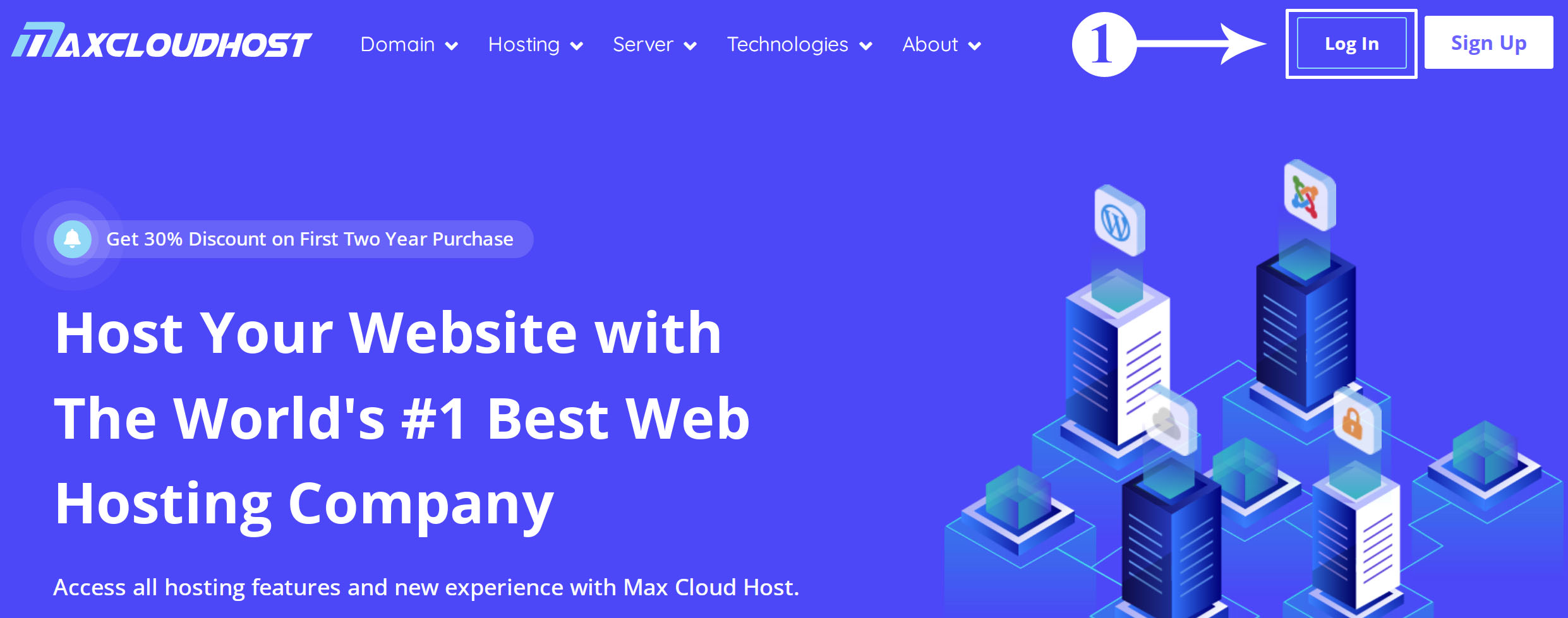
Step 1: Open the Max Cloud Host website in any browser and click on the Login button in the top right corner.
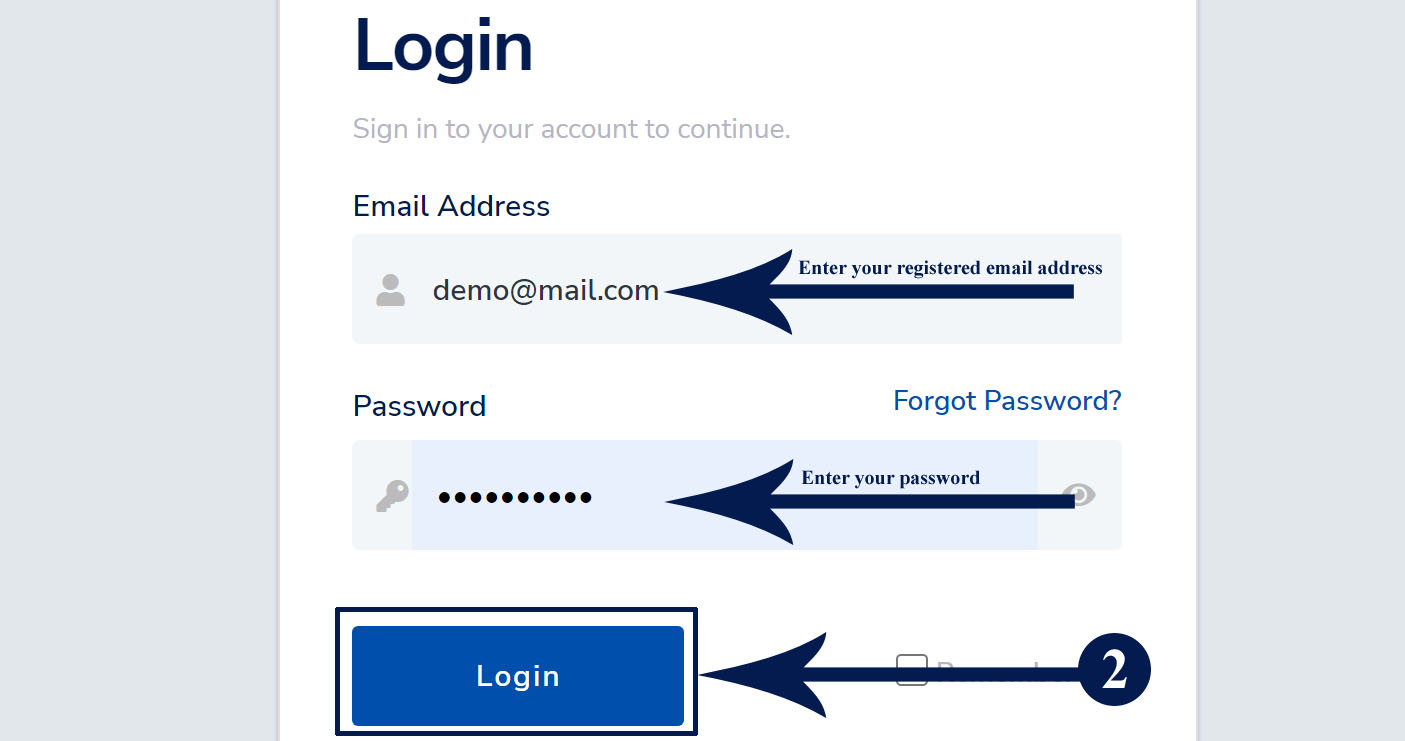
Step 2: Enter your registered email, and password and click on the Login Button.
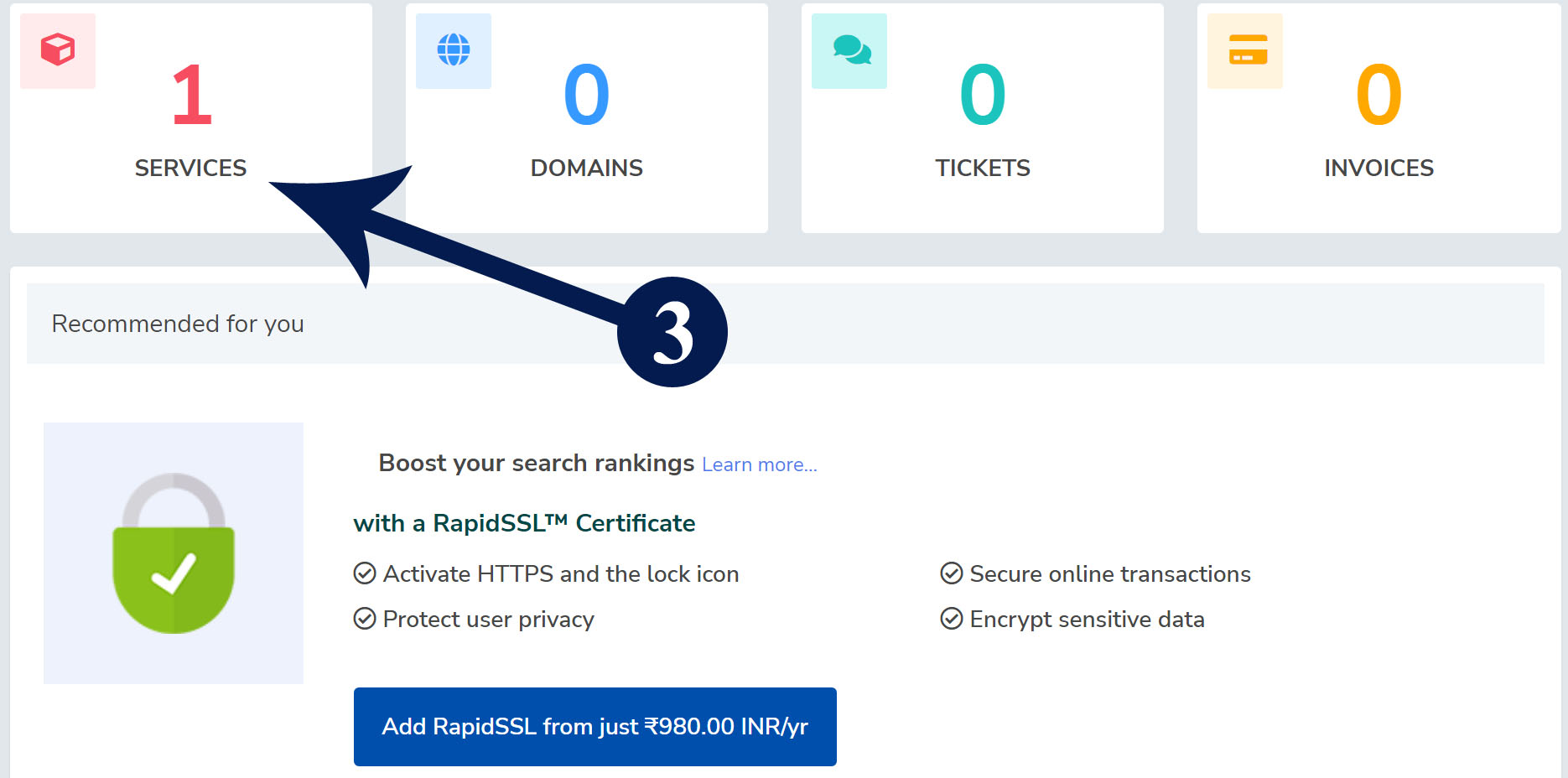
Step 3: After login, click on the Services box.
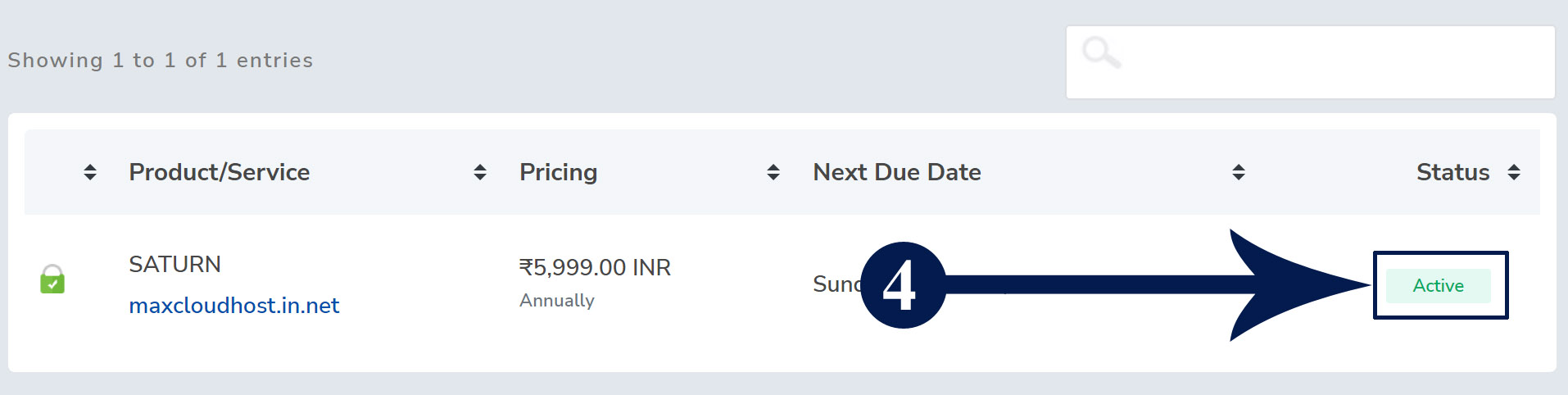
Step 4: In the listed hosting package, click on the active button which you want to change the cPanel password.
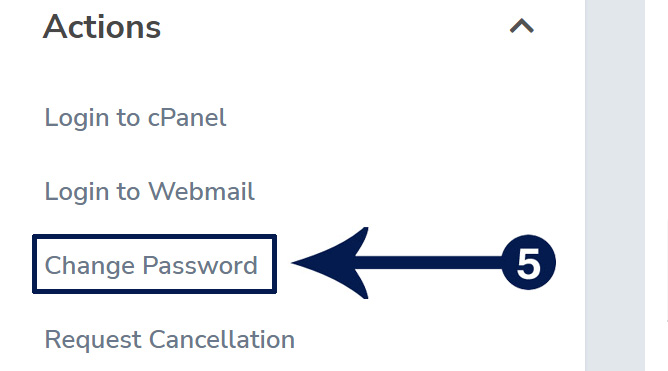
Step 5: On the right-hand side, click on the change cPanel password link.
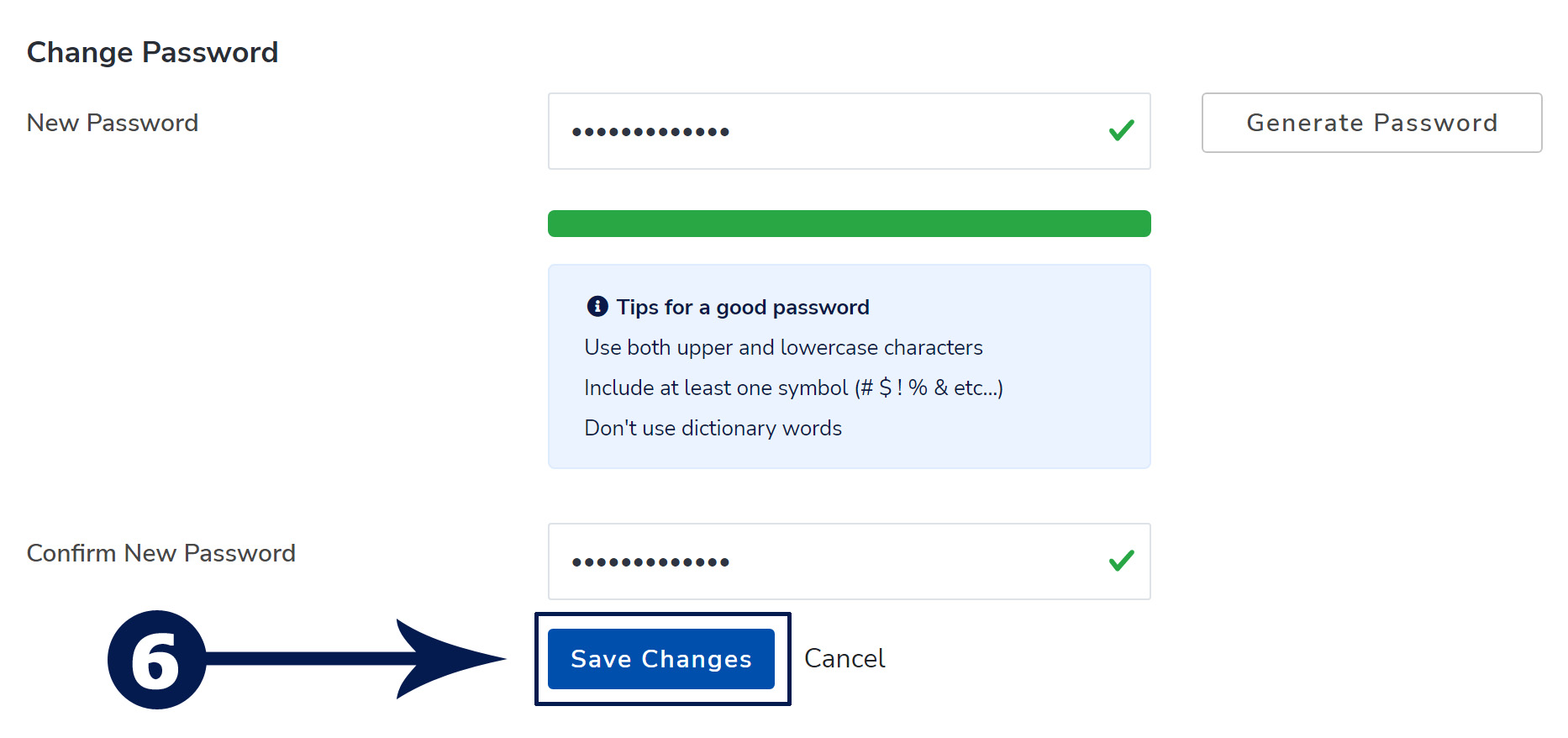
Step 6: Enter your new password and again, type your same password in the second box and click on the save changes button then the password will be Changed Successfully!
Note: We recommend you change your password using a password generator for highly secure passwords.
In this way, you can easily change the cPanel password from your client area dashboard. Still, have any issues? Then feel free to contact us with our support team. Click here

I am the CEO, Found of Max Cloud Host offering quality and affordable services to global clients. I am an expert in the Web Hosting niche and give full support to all of our customers anytime.
Introduction Do you knowHow to install WordPress in cPanel using Softaculous. This is one of the best and easiest ways…
To install the CloudLinux Operating System in WHM, follow these steps. Step 1: Login to your SSH as the root…

Follow these steps to uninstall Imunify360 from the WHM root server. Step 1. Log in to SSH as a root…